


Set up your store
Get your business details, branding and delivery preferences ready before you start selling.
6 steps · about 6 minutes
Before you start
Your logo and brand colours
Business and tax details
Delivery areas and charges
- Complete your business profileAdd your business name, address, contact details and tax information.
- Add your brandingUpload your logo and choose brand colours so the store matches your identity.
- Set delivery preferencesChoose where you deliver, shipping charges and any free-shipping threshold.
- Confirm payment optionsReview online payments and whether to offer cash on delivery.
- Publish your policy pagesAdd shipping, returns, privacy and terms pages.
- Place a test orderOrder, pay and track an item yourself before launch.
TipYour GroKeeper team configures most of this during your 7-day launch.
Was this guide helpful?
Related guides
Keep going.
Add and organise productsCreate clear listings with images, descriptions, pricing and availability.→
Understand payment optionsOffer suitable checkout options, including online payments and cash on delivery.→
Update your business profileKeep business details, contact information and branding current.→
In the admin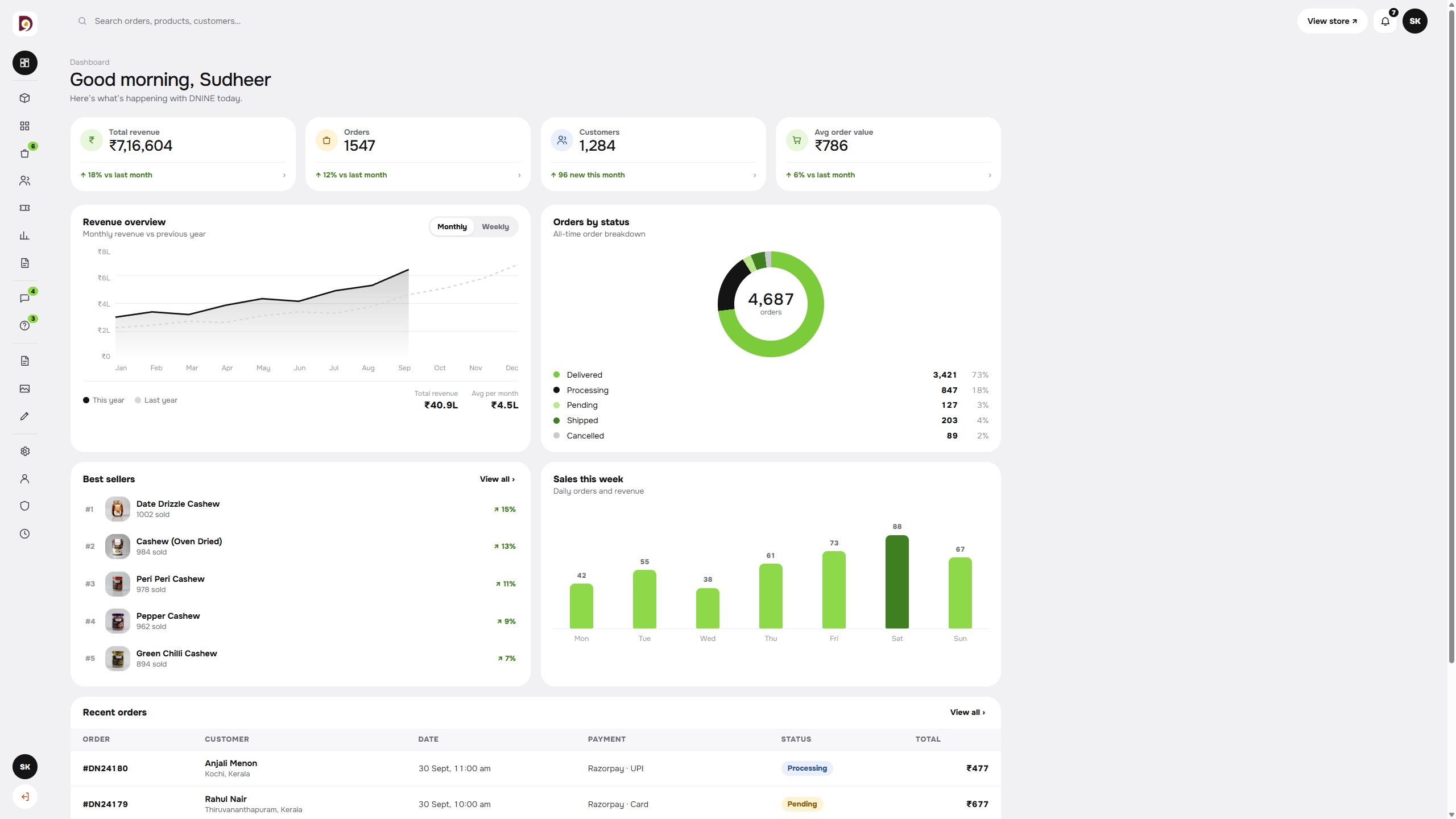
Where you’ll find it
This is the Dashboard screen in your GroKeeper admin. Your store may show different data.
Need more detail? See the full admin guide or contact support.